When SQL Server starts going down, one of the first places you should look is the error logs. They are the fastest way to pinpoint startup failures, unexpected crashes, and corruption issues.
The challenge? Many DBAs only know how to access these logs through SQL Server Management Studio (SSMS). That doesn’t help you much when SQL Server refuses to start.
Here are a few simple tricks to help you find your logs faster, troubleshoot outages quicker, and save valuable time during a high-stress incident.
The Easy Way (Through the UI)
If SQL Server is up and running, finding the logs is straightforward:
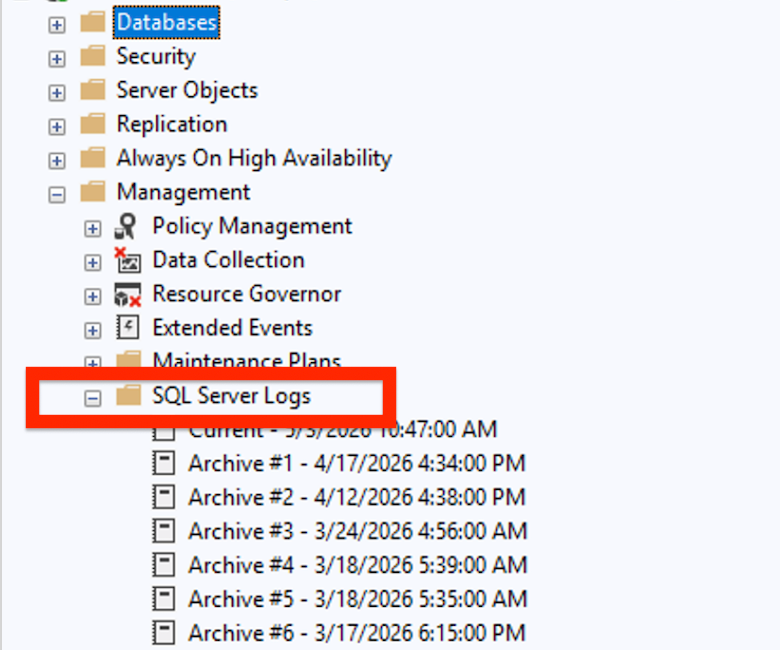
- Expand Management in Object Explorer.
- Expand SQL Server Logs.
- Right-click any log and select View SQL Server Log.
Control Your Log Retention
By default, SQL Server only keeps a limited number of archived logs before recycling and overwriting them. In a busy production environment, valuable troubleshooting history can disappear in minutes.
To prevent this:
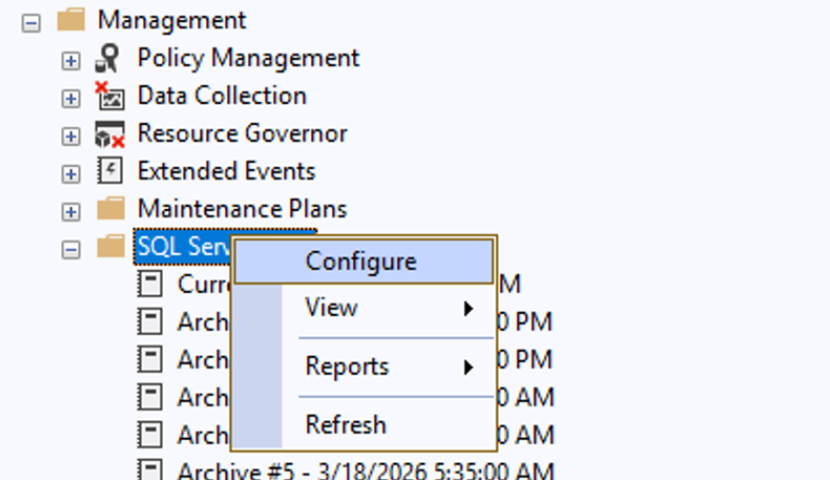
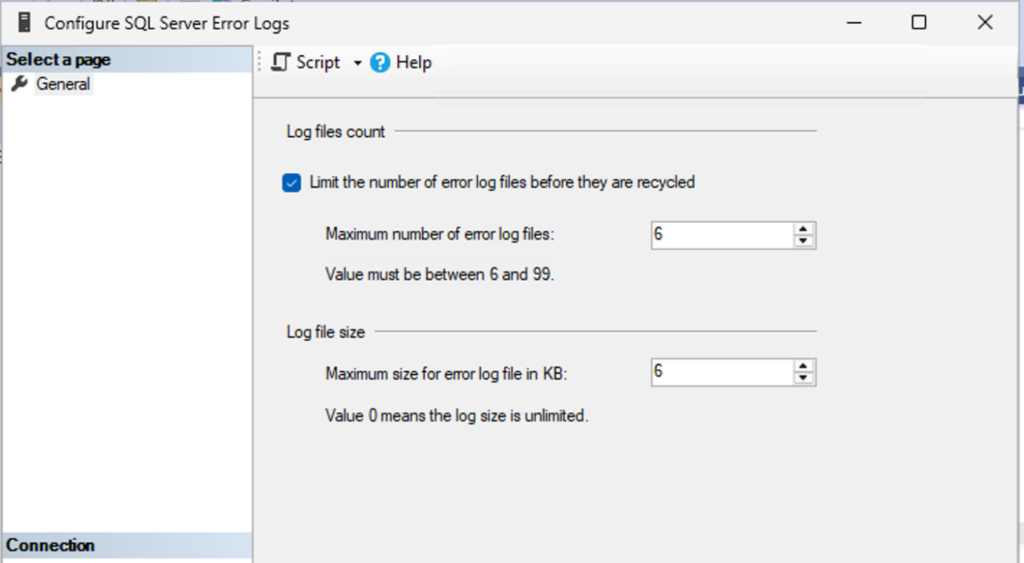
- Right-click SQL Server Logs and click Configure.
- Check the box to limit the number of error log files, and increase the number of archived logs SQL Server keeps (e.g., change it from the default 6 to 20 or 30).
What If SQL Server Won’t Start?
This is where things get tricky. If the service is crashing or won’t start, SSMS is useless. Luckily, SQL Server writes these logs directly to the local disk as plain text.
The hard part is that during a chaotic outage, nobody remembers the exact file path. Here is how to find it when you are flying blind:
- Open the Start Menu on the host server.
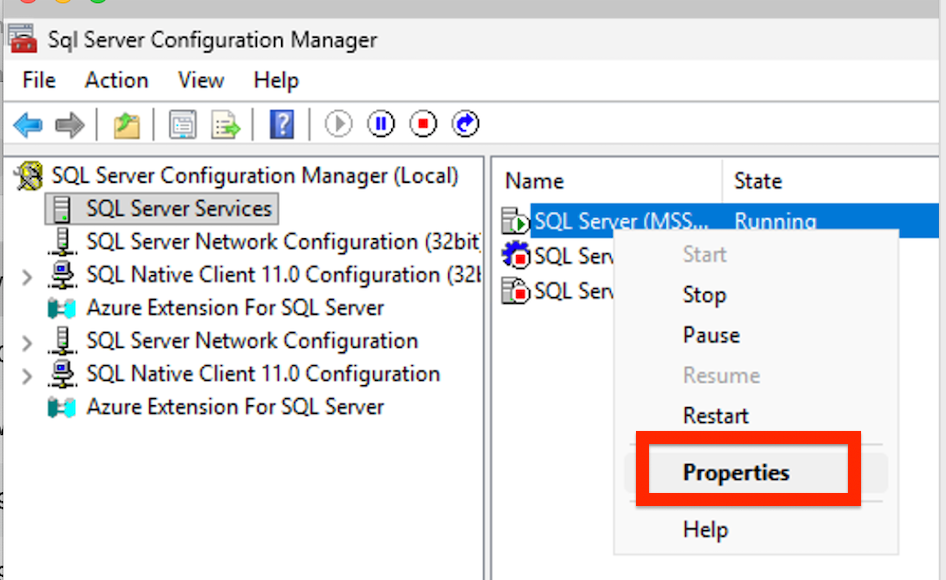
- Open SQL Server Configuration Manager.
- Click SQL Server Services and right-click your SQL Server instance, then select Properties.
- Go to the Startup Parameters tab.
- Look for the parameter starting with
-e.
What is the
-eparameter? This explicit argument tells SQL Server exactly where to write its error log file.
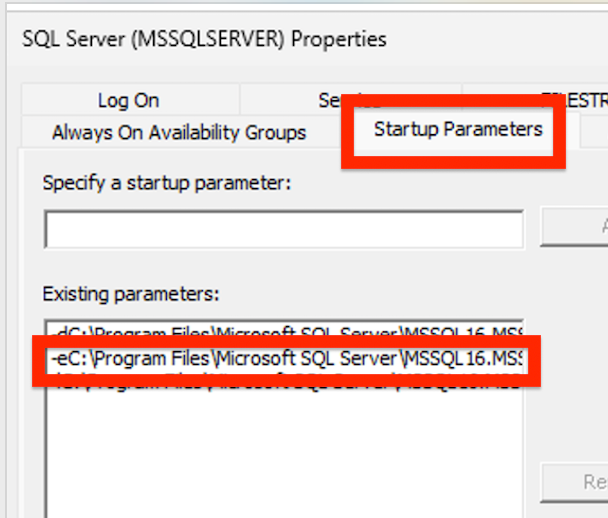
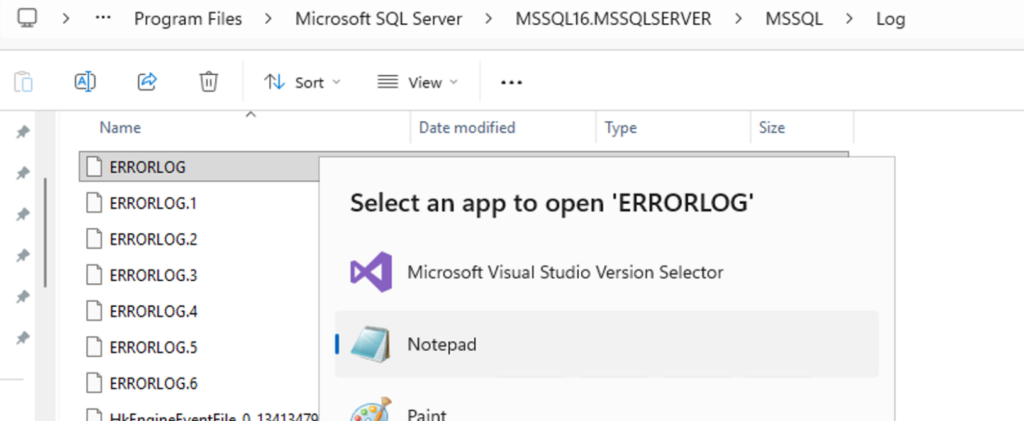
Once you copy that path, you can open File Explorer, browse directly to the folder, and open the ERRORLOG file in Notepad, even when SQL Server is completely offline.
SQL Server Error Logs vs Windows Event Viewer
A common mistake is focusing exclusively on the SQL Server error log. If SQL Server crashes during its absolute earliest boot stages, it might not even have time to write to its own log. Instead, the real root cause will be recorded in Windows.
If SQL Server crashes during startup, sometimes the real reason is only visible inside:
- Windows Application Logs
- System Logs
- Failover Cluster logs
- Storage or disk-related events
SQL Server may simply report that startup failed, while Windows tells you the actual root cause like:
- Permission failures
- Corrupted disks
- Service account problems
- Missing drives
- Cluster resource failures
Good troubleshooting usually means checking both.
How to Find the SQL Server Agent Logs
One thing newer DBAs often miss is that the SQL Server Agent does not write to the main SQL Server error log. It has its own separate log file. If your scheduled jobs suddenly stop running, or if the Agent service itself refuses to start, checking the main error log won’t tell you why. You have to look at the Agent logs.
Option A: Through the UI (If Agent is Running)
If the SQL Server Agent service is up, finding the log is simple:
- Expand SQL Server Agent in SSMS Object Explorer.
- Expand Error Logs.
- Right-click Current and select View Agent Log.
You can also get locations for those logs in the properties.
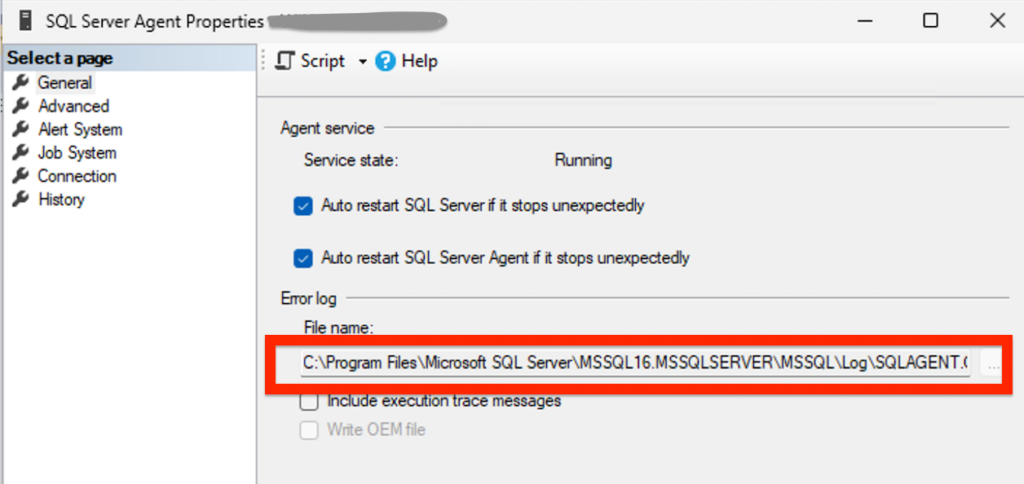
Option B: From the File System (If Agent Won’t Start)
If the Agent service is offline and refusing to start, you can find the raw log files on the local disk.
By default, the Agent log is located in the exact same directory as your main SQL Server ERRORLOG (which you can find using the -e startup parameter trick mentioned above).
- Look for files named
SQLAGENT.OUT,SQLAGENT.1,SQLAGENT.2, etc. - The file with the
.OUTextension is always the current log. You can open it instantly with Notepad to find out why the service is failing to initialize
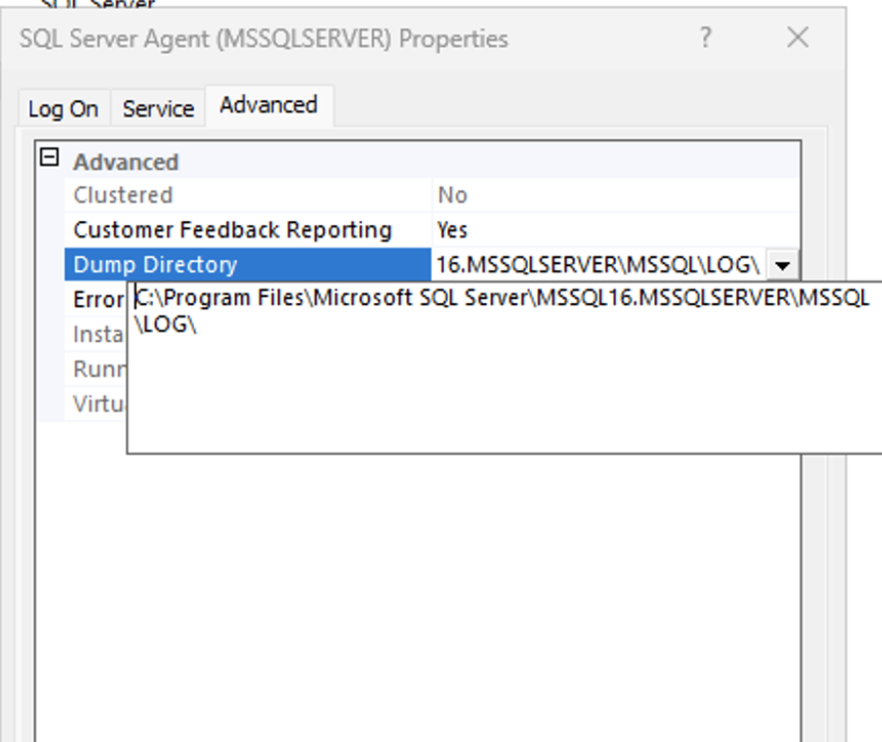
Option C: Get Dump Directory Location
- Open the Start Menu on the host server.
- Open SQL Server Configuration Manager.
- Click SQL Server Agent and right-click, then select Properties.
- Go to the Advanced
- Look for the dump directory
Querying Logs with T-SQL (Without Opening Massive Files)
If the server is online but the log file is multi-gigabyte and causes Notepad to freeze, you can query it directly using T-SQL.
To read the current log:
EXEC xp_readerrorlog;
GO
To filter for specific keywords (like finding why the SQL Server Agent won’t start), pass parameters to filter the text:
-- Parameters: Log number (0 = current), Log type (1 = SQL Log), Search string 1
EXEC xp_readerrorlog 0, 1, N'Agent';
GO
During an Outage, Start Here First
When SQL Server will not start, these are the first things I usually check:
- ERRORLOG file
- Windows Event Viewer
- Disk space
- Service account changes
- Startup parameters
- Recent patching or server changes
- TempDB drive availability
A surprising number of outages come down to simple infrastructure problems like full disks, missing mount points, or permissions.
These are not complicated tricks, but during a real outage, small troubleshooting shortcuts matter. The faster you can find the logs, the faster you can stop guessing and start finding the actual problem.


Leave a Reply